
Installing Nexus
All three installers come from the download page. Check System Requirements first if you are unsure your machine qualifies.
Windows
- Download
Nexus-Setup.exeand run it. - Approve the single administrator (UAC) prompt.
- Confirm the install folder (default:
C:\Program Files\Nexus) and whether you want a desktop shortcut, then continue. - The installer copies the app, registers the Nexus background service, sets it to start automatically, opens the Windows Firewall for it, and starts it. When it finishes, the dashboard opens on its own.
Re-running the installer over an existing install is safe; it is the same path the built-in updater uses. A Start Menu entry named "Nexus" opens the dashboard any time, and the tray icon gives you quick access to the dashboard and settings.
macOS
- Download
Nexus.dmgand open it. - Drag Nexus into the Applications folder shortcut inside the disk image.
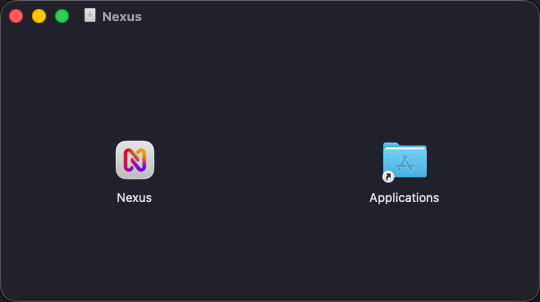
- Launch Nexus from Applications. The app is signed with a Developer ID and notarized by Apple.
The Nexus icon in the menu bar gives you quick access to the dashboard and settings.
Linux
Download
Nexus-Linux-x64.tar.gz.Extract it and run the install script (it will ask for
sudo):tar xf Nexus-Linux-x64.tar.gz cd nexus ./install.shThe script installs the app to
/opt/nexus, registers a root systemd unit at/etc/systemd/system/nexus.service(enabled and started immediately), adds an application menu entry that opens the dashboard, and sets up the motherboard sensor driver.
Open the dashboard from the application menu, or directly at http://localhost:9400. Useful commands afterward:
systemctl status nexus            # state
sudo systemctl restart nexus      # restart
journalctl -u nexus -f            # logs
Note
The Linux daemon adopts your desktop login session at startup so the tray icon, media controls, and volume work. If you installed before logging in to the desktop, run sudo systemctl restart nexus once.
After the install
The first dashboard launch shows a short welcome screen (start-at-boot and anonymous-statistics choices), then drops you into the app. Continue with the First-Run Tour, or jump straight to the Quick Start if you skipped it. If something went wrong, see Installation & Startup.