
Antivirus & False Positives
Nexus is safe. If your antivirus blocked or removed it, that is a false positive. Nexus controls fans, lighting, and sensors at a low level, which antivirus software sometimes mistakes for something harmful. The desktop app is open source, so anyone can read the code at github.com/hello-nexus. Download Nexus only from hellonexus.com/download.
The fix takes about a minute:
- Restore Nexus from your antivirus quarantine.
- Allow the Nexus folder,
C:\Program Files\Nexus, in your antivirus, then run the installer or start Nexus again.
Find your antivirus
Microsoft Defender
- If Windows says "Windows protected your PC", click More info, then Run anyway.
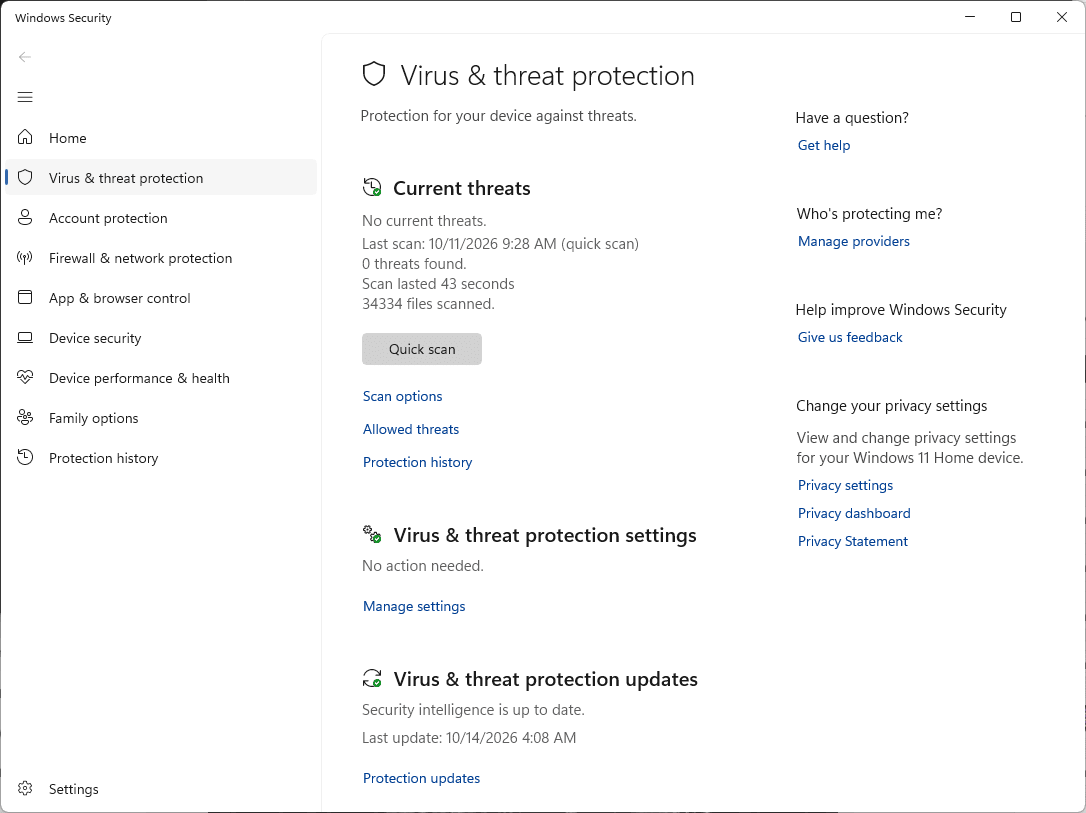
- Restore: open Windows Security > Protection history, open the Nexus entry, and choose Restore. If it is flagged again, choose Actions > Allow on device.
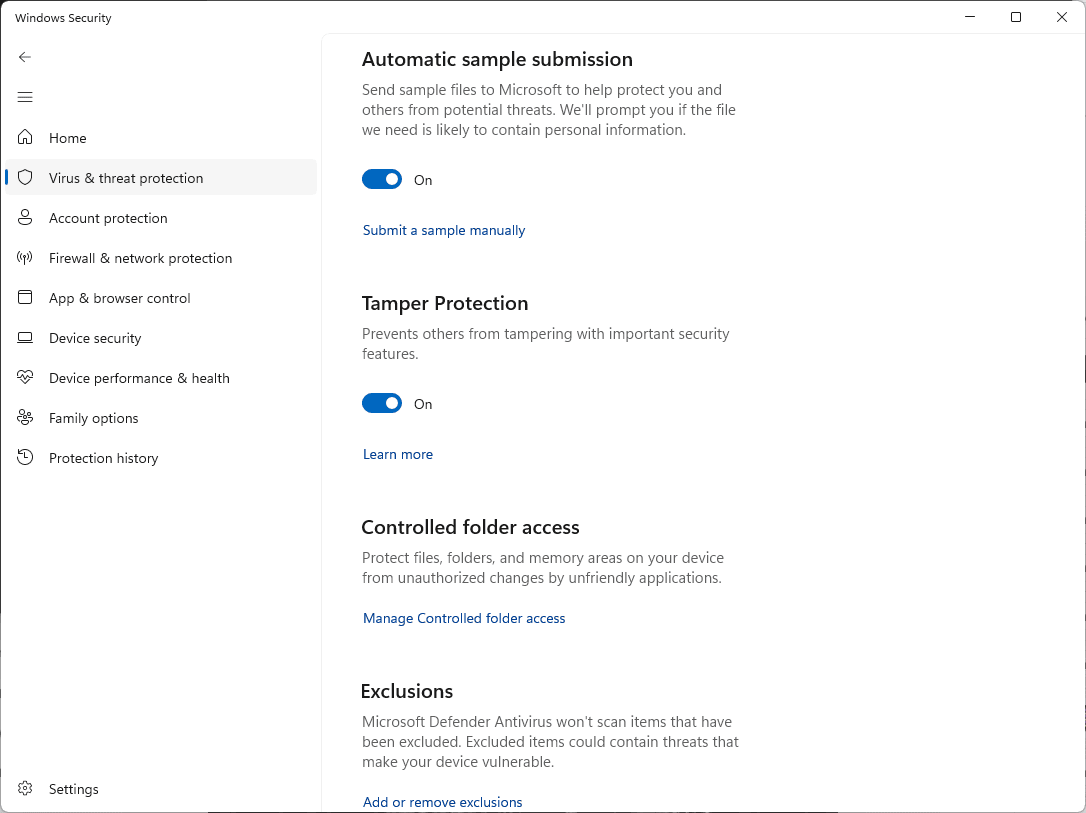
- Allow the folder: Virus & threat protection > Manage settings > Add or remove exclusions > Add an exclusion > Folder.
Guides: exclusions, Protection history. Report: file submission.
Norton
- Restore: Security > Security History > choose Quarantine, then on the Nexus item choose Create exception & restore.
- Allow the folder: Security > Scans > Exclusions tab > Add, and pick the Nexus folder.
Guides: exclusions, quarantine. Report: file submission.
McAfee
- Restore: Navigation > Quarantined and Trusted Items > Quarantined Items, select Nexus, and click Restore.
- Allow the folder: open Excluded Files and Folders (in newer versions Real-Time Scanning > Excluded Files) and add the Nexus folder.
McAfee menus differ by version. Guides: quarantine, restore, exclude a file. Report: use the false positive option on McAfee's support site.
Avast
- Restore: Protection > Quarantine, tick Nexus, click the three dots, and choose Restore and add exception.
- Or allow the folder: Menu > Settings > General > Exceptions > Add exception > File / Folder.
Guides: exceptions, quarantine. Report: false positive form.
AVG
- Restore: Menu > Quarantine, tick Nexus, click the three dots, and choose Restore and add exception.
- Or allow the folder: Menu > Settings > General > Exceptions > Add exception > File / Folder.
Guides: exceptions, quarantine, Blocked & Allowed apps (for ransomware, webcam, or browser warnings). Report: false positive form.
Bitdefender
- Restore: Protection > Antivirus > Open > Settings > Manage quarantine. Turn on Create exception for the restored files, select Nexus, and click Restore.
- Or allow the folder: Protection > Antivirus > Open > Settings > Manage Exceptions > +Add an Exception.
Guides: exceptions, quarantine. Report: use the false positive form on Bitdefender's consumer support site.
Kaspersky
- Restore: Security > Quarantine (top right), select Nexus, and click Restore.
- Allow the folder: Settings > Security settings > Threats and exclusions > Manage exclusions > Add.
Guides: exclusions, restore. Menus change between versions. Report: OpenTIP.
ESET
- Restore: Tools > Quarantine, right-click Nexus, and choose Restore and exclude from scanning.
- Or allow the folder: press F5 > Scan > Edit next to Performance Exclusions > Add.
Guides: exclusions, restore. Report: submit a sample.
Malwarebytes
- Restore: Detection History > Quarantined items, tick Nexus, tick Exclude this from future detections, and click Restore.
- Or allow the folder: Detection History > Allow list > Add item.
Guides: Allow list, quarantine. Report: false positive.
Trend Micro
- Allow the folder: Settings > Exception Lists > Programs/folders > Add > Browse, pick the Nexus folder, then Apply and OK.
- If Nexus was already removed, download it again from hellonexus.com/download.
Guide: exception list. Report: submit a sample.
Avira
- Allow the folder: cogwheel > PC Protection > Real-Time Protection > Exceptions, and add
C:\Program Files\Nexus\(the trailing backslash matters). - If Nexus was already removed, restore it from Avira's Quarantine or download it again.
Menus change between versions. Guide: excluding files. Report: file submission.
Webroot
- Open Webroot, click the PC Security gear, then Block/Allow Files > Add File.
- Pick
Nexus.exein the Nexus folder and select Allow. Files you restored from quarantine show up in the same list.
Guide: Blocking or allowing files. Report: open a support ticket with Webroot and choose the false positive option.
Mac
Nexus for Mac is signed and notarized by Apple. If a Mac security app flags it, allow Nexus.app the same way.
Still flagged?
Tell us on Discord which antivirus you use, and report the file to your antivirus vendor as a false positive with the links above.