
ウイルス対策ソフトと誤検知
Nexusは安全です。ウイルス対策ソフトにブロックまたは削除された場合、それは誤検知です。Nexusはファンやライティング、センサーを低レベルで制御するため、ウイルス対策ソフトが有害なものと誤認することがあります。デスクトップアプリはオープンソースなので、github.com/hello-nexusで誰でもコードを確認できます。Nexusはhellonexus.com/downloadからのみダウンロードしてください。
対処は1分ほどで終わります。
- ウイルス対策ソフトの隔離からNexusを復元します。
- ウイルス対策ソフトでNexusフォルダーを許可します(
C:\Program Files\Nexus)。その後、インストーラーを実行するか、Nexusをもう一度起動します。
ウイルス対策ソフトを探す
Microsoft Defender
- Windowsに「Windows protected your PC」と表示されたら、More infoをクリックし、続けてRun anywayをクリックします。
- 復元:Windows Security > Protection historyを開き、Nexusの項目を開いてRestoreを選びます。再び検出される場合は、Actions > Allow on deviceを選びます。
- フォルダーを許可:Virus & threat protection > Manage settings > Add or remove exclusions > Add an exclusion > Folder。
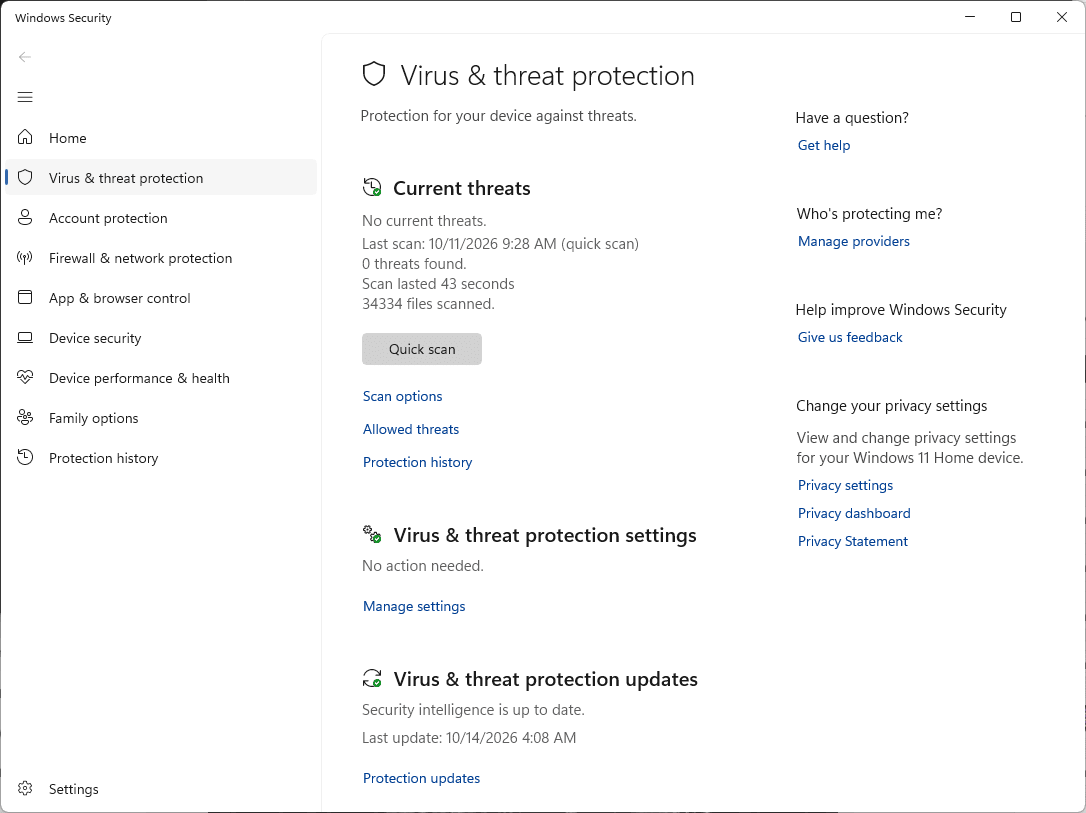
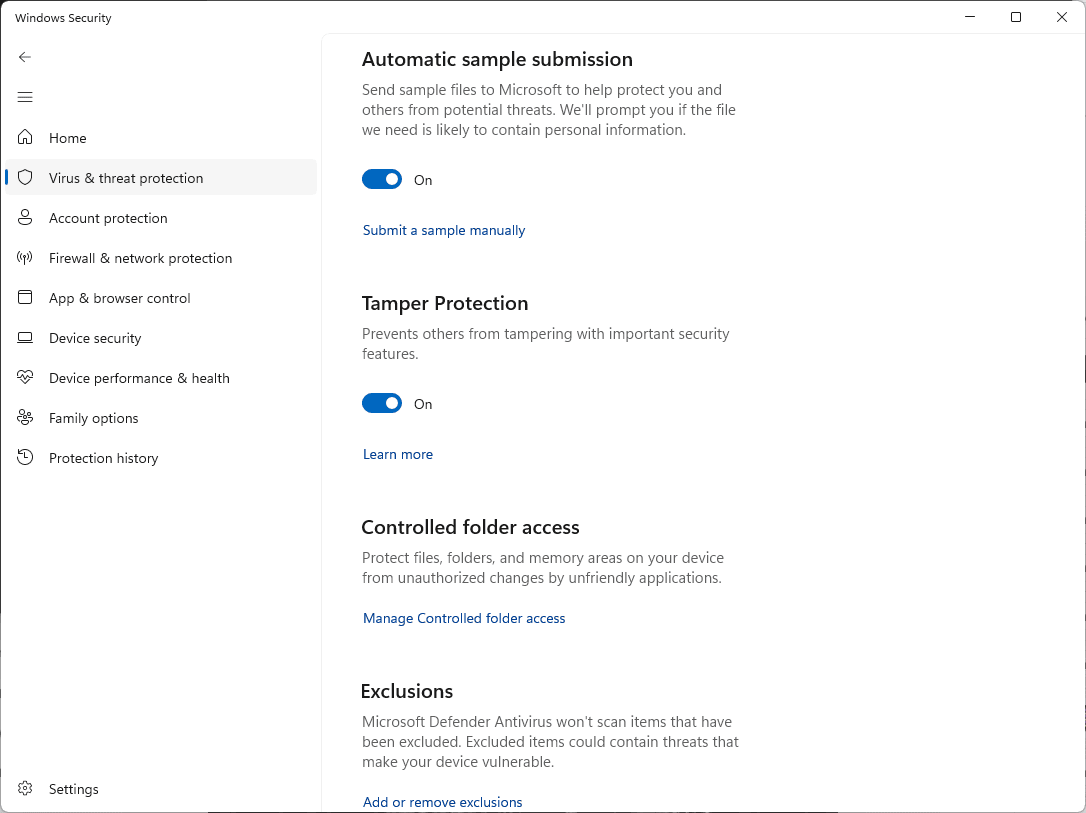
ガイド: 除外設定、Protection history。報告: ファイルの提出。
Norton
- 復元:Security > Security History > Quarantineを選び、Nexusの項目でCreate exception & restoreを選びます。
- フォルダーを許可:Security > Scans > Exclusionsタブ > Addをクリックし、Nexusフォルダーを選びます。
McAfee
- 復元:Navigation > Quarantined and Trusted Items > Quarantined Itemsで、Nexusを選んでRestoreをクリックします。
- フォルダーを許可:Excluded Files and Foldersを開き(新しいバージョンではReal-Time Scanning > Excluded Files)、Nexusフォルダーを追加します。
McAfeeのメニューはバージョンによって異なります。ガイド: 隔離、復元、ファイルを除外する。報告: McAfeeのサポートサイトにある誤検知の報告オプションを使ってください。
Avast
- 復元:Protection > QuarantineでNexusにチェックを入れ、3つの点をクリックしてRestore and add exceptionを選びます。
- または、フォルダーを許可:Menu > Settings > General > Exceptions > Add exception > File / Folder。
AVG
- 復元:Menu > QuarantineでNexusにチェックを入れ、3つの点をクリックしてRestore and add exceptionを選びます。
- または、フォルダーを許可:Menu > Settings > General > Exceptions > Add exception > File / Folder。
ガイド: 例外、隔離、Blocked & Allowed apps(ランサムウェア、Webカメラ、ブラウザーの警告用)。報告: 誤検知フォーム。
Bitdefender
- 復元:Protection > Antivirus > Open > Settings > Manage quarantineを開きます。Create exception for the restored filesをオンにし、Nexusを選んでRestoreをクリックします。
- または、フォルダーを許可:Protection > Antivirus > Open > Settings > Manage Exceptions > +Add an Exception。
ガイド: 除外設定、隔離。報告: Bitdefenderの個人向けサポートサイトにある誤検知フォームを使ってください。
Kaspersky
- 復元:Security > Quarantine(右上)で、Nexusを選んでRestoreをクリックします。
- フォルダーを許可:Settings > Security settings > Threats and exclusions > Manage exclusions > Add。
ガイド: 除外設定、復元。メニューはバージョンによって変わります。報告: OpenTIP。
ESET
- 復元:Tools > QuarantineでNexusを右クリックし、Restore and exclude from scanningを選びます。
- または、フォルダーを許可:F5キーを押し、Scanを開いて、Performance Exclusionsの横のEditをクリックし、Addをクリックします。
Malwarebytes
- 復元:Detection History > Quarantined itemsでNexusにチェックを入れ、Exclude this from future detectionsにもチェックを入れて、Restoreをクリックします。
- または、フォルダーを許可:Detection History > Allow list > Add item。
ガイド: Allow list、隔離。報告: 誤検知。
Trend Micro
- フォルダーを許可:Settings > Exception Lists > Programs/folders > Add > BrowseでNexusフォルダーを選び、Apply、OKの順にクリックします。
- Nexusがすでに削除されている場合は、hellonexus.com/downloadからもう一度ダウンロードしてください。
Avira
- フォルダーを許可:歯車アイコン > PC Protection > Real-Time Protection > Exceptionsで、
C:\Program Files\Nexus\を追加します(末尾のバックスラッシュが必要です)。 - Nexusがすでに削除されている場合は、Aviraの隔離から復元するか、もう一度ダウンロードしてください。
メニューはバージョンによって変わります。ガイド: ファイルの除外。報告: ファイルの提出。
Webroot
- Webrootを開き、PC Securityの歯車をクリックして、Block/Allow Files > Add Fileを選びます。
- Nexusフォルダーにある
Nexus.exeを選び、Allowを選択します。隔離から復元したファイルも同じ一覧に表示されます。
ガイド: Blocking or allowing files。報告: Webrootにサポートチケットを送り、誤検知のオプションを選んでください。
Mac
Mac版Nexusは署名済みで、Appleの公証を受けています。Macのセキュリティアプリが検出した場合は、同じ方法でNexus.appを許可してください。
それでも検出される場合
どのウイルス対策ソフトを使っているかをDiscordで教えてください。また、上のリンクから、そのファイルを誤検知としてウイルス対策ソフトのベンダーに報告してください。